Managing invoices
To manage your invoices, follow these steps:
- Log in to the Customer Portal.
If you do not know how to log in to the Customer Portal.
- On the menu bar, click and then click :
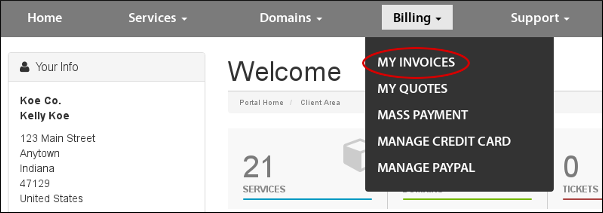
A list of invoices appears:
- To sort the list of invoices, click a column heading. For example, to sort your invoices by the due date, click the Due Date heading.
You can filter the list of invoices to only display paid, unpaid, canceled, or refunded invoices. To do this, in the Status sidebar, click the invoice status you want to view.
- To sort the list of invoices, click a column heading. For example, to sort your invoices by the due date, click the Due Date heading.
-
To view the details for an invoice, click it.
- To print a copy of the invoice, at the bottom of the page, click .
- To download a copy of the invoice in PDF format, at the bottom of the page, click .
Paying an invoice
There are multiple ways you can pay outstanding invoices in the Customer Portal:
- To pay a specific invoice, follow the procedure above to view an invoice. You can specify the payment method and pay directly from the invoice statement.
- To pay all outstanding invoices at once, click on the menu bar, and then click :
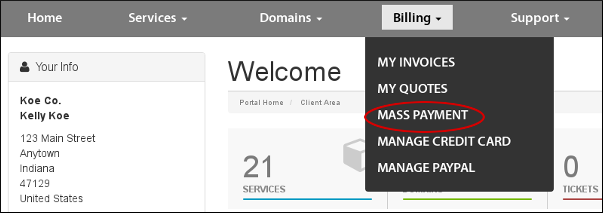
In the Payment Method list box, select the payment method, and then click .
Payment methods
We accept several payment methods:
- PayPal
- Skrill
- Credit card (Visa, MasterCard, American Express, and Discover)
After we receive your payment, we will send you a confirmation message by e-mail.
Canceling a line item in an invoice
If you receive an invoice with a line item that you do not want to renew, you can cancel it. To do this, follow these steps:
- Log in to the Customer Portal.
If you do not know how to log in to the Customer Portal.
- On the menu bar, click and then click :

- Click the product or service you want to cancel.
- Under , click .
- In the text box, type a brief reason why you want to cancel the product or service.
- In the Cancellation Type list box, select whether you want the cancellation to be immediate, or occur at the end of the billing period.
- Click .
- On the menu bar, click and then click :
-
To cancel a domain-related item:
- On the menu bar, click and then click :
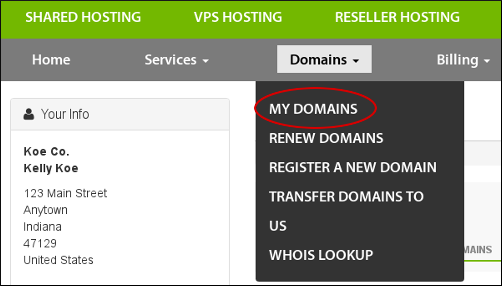
- Click the item you want to cancel.
- In the Manage sidebar, click .
- Click .
- On the menu bar, click and then click :